Frequently Asked Web Accessibility Questions
Here are 28 of the most frequently asked questions people ask us about web accessibility.
“What Should I do About Web Accessibility?”
As a digital agency, it’s a question we get all the time. Inevitably, it leads to many other follow-up questions.
There are up to one billion people around the world with disabilities. A vast range of disabilities can impact how people use the internet. This includes not only physical and cognitive disabilities but also temporary disabilities like breaking a limb, or age-related disabilities, like needing reading glasses for instance.
Many people use assistive technologies to access content. This could be a wide variety of devices, including screen readers, magnification software, text readers, speech input devices, head pointers, motion and eye tracking, and so on.
With all of that in mind, how do you offer site visitors the best experience possible regardless of ability, especially considering the wide array of available devices and technologies? We have compiled the questions and answers below to help you improve web accessibility.
Web Content Accessibility Guidelines (WCAG)
In 1999, the World Wide Web Consortium (W3C) released the Web Content Accessibility Guidelines (WCAG), which are a set of recommendations you can use to create accessible web-based content, user interfaces, and digital experiences.
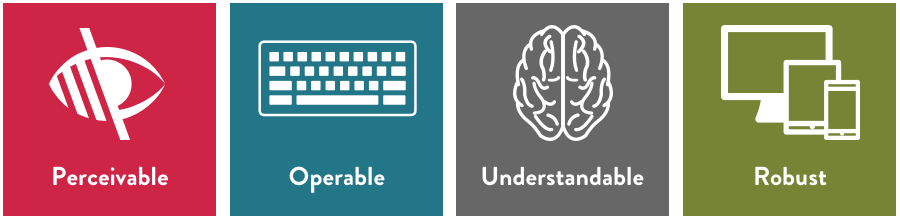
The guidelines are part of W3C’s Web Accessibility Initiative and use the POUR acronym to guide implementation:
- Perceivable
- Operable
- Understandable
- Robust
The FAQs below address each of these concepts in more detail.
1. What are web accessibility standards?
Web accessibility standards differ from country to country based on individual laws. However, many rely on the World Wide Web Consortium’s Web Content Accessibility Guidelines (WCAG), which is currently referenced worldwide for accessible digital design.
2. What are the WCAG compliance levels? What do they mean?
WCAG includes three levels:
- A: The basic level, which helps ensure assistive technologies can navigate and translate a product or website.
- AA: A mid-level many organizations aim for, this includes requirements like color contrast and proper error identification.
- AAA: The highest level of accessibility, for the broadest range of disabilities, achieving level AAA impacts choices during the entire lifecycle of a digital product or service.
3. Is web accessibility a one-time task? Once you ‘conform’, is that it?
No, accessibility requires an ongoing commitment. It must be treated as a continuous process. As content is updated or new functionality added, you need to maintain accessibility as well.
Perceivable Web Accessibility Guidelines
WCAG recommendation: make content perceivable to all users.
4. What does ‘perceivable’ mean in the context of web accessibility?
Information, content, and user interface components must be presented in ways users can recognize or discern. For example, visually impaired users may rely on screen readers to perceive content.
5. How might we ensure that text and background color contrast meets accessibility requirements?
For standard paragraph text, aim for a contrast ratio of 4.5:1 (text vs background). For larger text or links, a ratio of 3:1 may suffice. Contrast checker tools can help with this.
6. Can assistive technologies interpret text inside my images?
No. Screen readers can’t read text embedded in images. Serve essential information in text format.
If you do add text to images, ensure sufficient contrast. Also, make sure the text is decorative only and doesn’t convey any key information.
7. How can I make images accessible?
Provide descriptive alt text. File names or emojis aren’t typically very useful here. When possible, use descriptive captions as well. This helps screen readers and also improves SEO.
8. How can I make video or audio content accessible?
Include captions for videos. Also provide a transcript (or at least a summary) for video/audio content so users relying on assistive technologies or those who are deaf/hearing-impaired can still access the information.
9. Why does the order of content headings matter?
Many assistive-tech users navigate content via keyboard (e.g. tabbing). For this to work, page headings must follow a logical, sequential order: h1, h2, h3, and so on. Otherwise, navigation will be confusing.
This is good for accessibility, sustainability, and also search performance.
Why Content Structure Matters
Related content: Understand how heading tags and document structure improve content for people, search engines, and assistive technologies.
Operable Web Accessibility Guidelines
WCAG recommendation: Ensure your interface is operable by different input methods.
10. Should all functionality be accessible without a mouse?
Yes. Interfaces should work with keyboard navigation, such as the tab or related keys, or other input methods (speech, alternative devices). Do not rely solely on mouse-based interaction.
11. How can I make dynamic content or elements requiring precise mouse movement more accessible?
Avoid complex or mouse-only interactions. Provide alternative methods when possible. Also, large clickable/tappable areas help users with limited dexterity or motor control.
12. How should I approach accessibility for animations, auto-advancing banners, or time-limited content?
Whenever possible, avoid animations, auto-advancing, or pop-ups that users can’t control. If you must use these elements, enable user controls and provide enough time for users to read or interact with the content.
Also, do not use content that flashes more than three times per second. This can pose seizure risks.
13. What’s the best way to address accessibility for navigation, buttons, links, and structure?
Use clear, descriptive labels for buttons and links. Provide clear headings, titles, and predictable layout and navigation elements. Use proper HTML5 semantic structure, including headings, title tags, landmarks, and so on.
Also, don’t rely only on visual styling (like bolding) to convey structure.
14. How do you make complex sites easier to navigate?
Use helpful navigational aids. Breadcrumb trails, sub-navigation, and clear signposts to related content can make a big difference in how users find their way through your content.
Also, let users skip or bypass blocks of content when needed. This is especially true for repetitive content.
Create Better Navigation
Related Content: Learn how to use tree testing to build navigation structures that help people more easily find the content they’re looking for.
Understandable Web Accessibility Guidelines
WCAG recommendation: Make content and interactions easy to understand.
15. How should we approach accessibility for site copy or other written forms of content?
Use plain, clear language and avoid jargon, abbreviations, or complex phrasing when possible. Write for a lower secondary education (roughly seventh to ninth-grade) reading level.
16. How can I make typography and font choices more accessible?
Use clean, readable fonts for body text and headings. Avoid decorative or overly styled fonts for main content. Also avoid large blocks of underlined text, italics, or all-caps. These make reading more difficult.
17. Should site layout and navigation be consistent throughout the site?
Yes. Keep header, footer, navigation placement consistent across pages. Consistent layout helps users know where to look. Also, prefer left-aligned text to maximize readability.
18. How should we address complex task flows, such as form completions, checkouts, and other processes that require multiple steps?
Don’t make users rely on their memory of prior pages. On each page, repeat necessary instructions or hints as needed. In other words, show shopping cart items, provide field examples or placeholders, explain expected input formats.
19. How should we manage form validation or error handling to ensure accessibility?
Provide clear, actionable, helpful error messages. For example, instead of “error in field,” say “Please enter a valid email address.” This helps users understand what went wrong and how to fix it.
Also, autofill and autocomplete features can reduce typing for users with motor impairments, reduce cognitive load for users with cognitive disabilities, improve accuracy for screen-reader users, and speed up form completion for everyone.
Robust Web Accessibility Guidelines
WCAG recommendation: Ensure compatibility across platforms, devices and assistive technologies.
20. What does ‘robust’ mean regarding web accessibility?
Digital products and services should work reliably across different browsers, devices, and assistive technologies. usable by as many people as possible.
21. Which practices support robustness?
Here’s a short list:
- Use semantic, standards-compliant HTML5 code
- Clean up markup. Don’t leave incomplete tags or duplicate elements.
- Follow best practices so screen readers or other user agents can interpret the site correctly.
Real-World Web Accessibility: Access Living
Common web accessibility questions answered through the lens of a case study.
So, how does web accessibility work on a project? Here are some questions that are specific to a project that Mightybytes implemented with our partners at Access Living where we targeted a website redesign with AAA-level accessibility compliance.
22. Does using a content management system (CMS), such as WordPress or others, make accessibility harder?
It depends. CMS choice makes a big difference. Be sure to vet accessibility features before choosing one.
For the Access Living project, the site was built in WordPress. The admin/editor experience in Gutenberg, the WordPress content editing environment, was not AAA-accessible. However, it was a collective decision between both teams to accept this as a trade-off.
It’s also worth noting that WordPress has made significant accessibility improvements to the content editor since launching Gutenberg in late 2018.
23. How do external plugins or CMS themes impact web accessibility?
Unless specified otherwise, most out-of-the-box plugins and themes are not AAA-accessible. You should test them with accessibility tools before using them. If they fail, consider alternative themes or plugins.
You can make custom adjustments to some of these tools. However, if a tool requires a software update, it will likely overwrite any custom adjustments you have made. Not implementing these updates can cause security risks.
24. Should we conduct manual web accessibility tests using assistive technologies?
Yes. Even if you meet WCAG guidelines, you cannot assume the site works for everyone. Manual accessibility testing with real people using assistive technology reduces risk and will catch potential errors that software tools alone can’t.
Plus, feedback from these sessions should drive refinements.
25. Does building to AAA standards mean you have to sacrifice design elements?
Not necessarily. In Access Living’s case, we delivered a AAA-accessible website with intuitive visual design and images, proving that accessible websites can also be compelling.
26. Does meeting accessibility guidelines guarantee perfect access for all users?
No. It’s impossible to cover every assistive technology, device, or disability. The guidelines are the minimum floor. There is always room for improvement, especially as you add content, interactivity, and features over time.

Web Accessibility Case Study
Read the full Access Living case study, which shows how prioritizing accessibility and inclusive design as a baseline helps this national disability rights advocacy organization better serve their community.
Web Accessibility Tools
27. What accessibility tools should I use to test my website?
Software tools like SiteImprove and WAVE from WebAIM are a good start. Both have free versions. SiteImprove also offers a Chrome extension to check accessibility as you build or update pages.
However, per question 24 above, automated accessibility testing tools typically only catch about one-third of all possible accessibility issues. To reduce risk and improve compliance, we recommend coupling automated software testing with manual accessibility testing.
28. Should I use an accessibility overlay tool?
While accessibility overlay tools can be cost-effective, we don’t recommend them. For more information on why, read the Overlay Fact Sheet.
Web Accessibility FAQs: Final Word
The questions above regularly come up in our accessibility discussions with clients and others. In fact, they came up enough during conversations to form the basis of our accessibility training services and several webinars we produced. If you have additional questions, don’t hesitate to get in touch.
Accessibility Services
Learn more about how Mightybytes helps our clients reduce risk and improve usability with more inclusive digital experiences.